Put a screenshot, a product shot, or any image on a background that makes it look deliberate, sized for a LinkedIn post, your LinkedIn banner, or an X header. Pick a palette or your own color, choose the size, and download a PNG. The image never leaves your browser.
Background
Size
Breathing room
Frame
Beyond this one graphic
Inside Depost AI, the AI content team B2B founders and teams run on LinkedIn, every drafted post arrives with its graphic already designed in your brand style. The agents plan from your analytics, write in your voice, design the visual, and schedule through the official API. You approve, it publishes.
Add the image
Drag it onto the page, choose it from your computer, or paste it from the clipboard. Nothing is uploaded.
Pick the size
A feed post, a slide, your LinkedIn banner, or an X header.
Choose a background
A palette or your own color, solid or gradient. Light images read best on dark or saturated backgrounds.
Download the PNG
Exported at 2x, so it stays sharp after the platform compresses it.
Some of the strongest B2B posts are the least produced: a dashboard the morning after a launch, the pricing page before and after, the support ticket that changed a roadmap. A screenshot shows the thing instead of describing it. Most still underperform because of how they are presented: a full-window capture with sixteen browser tabs visible buries the one number that matters.
Fixing that is what a screenshot beautifier is for, and this one works without uploading anything. The background fixes half of the problem, and cropping fixes the rest. Crop the image to the part that makes the point before you add it here: the tighter the crop, the larger that part shows in the feed. For contrast, put light screenshots on dark or saturated backgrounds, and dark-mode screenshots on light ones.
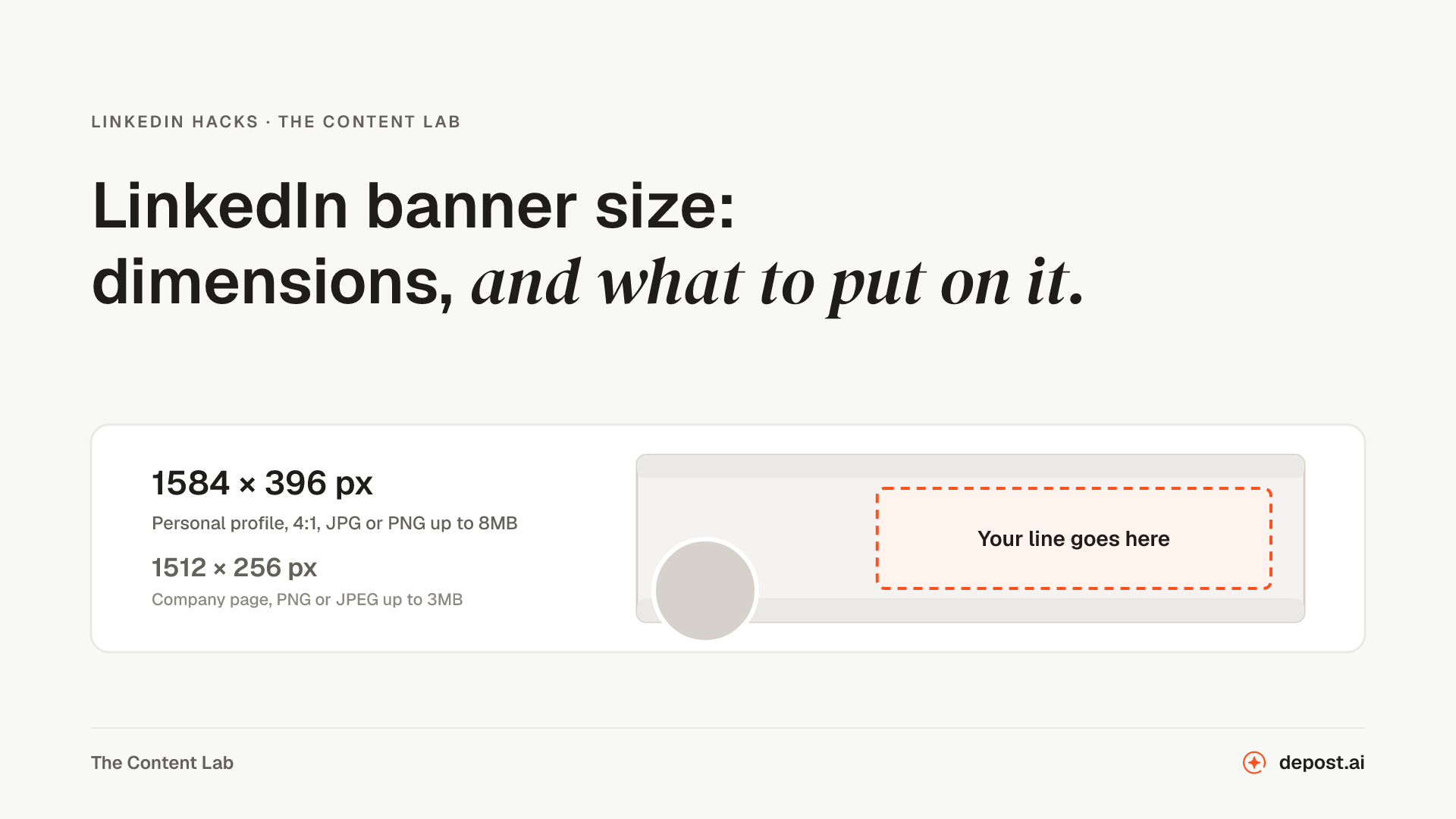
The LinkedIn banner is the largest image on your profile, and many people leave it blank or fill it with a slogan. If you build a product, the banner can show it instead: the dashboard, the app, the result. To create a LinkedIn banner from an image you already have, choose the LinkedIn banner size and the image lands in the right-hand part of the banner, where it stays visible on desktop and on mobile, clear of your profile photo. For a banner built around a line of text instead, use the LinkedIn banner maker, and for every size and safe zone in one place, the LinkedIn banner size guide.
Nothing here leaves your browser, but the post will, so read the image the way a stranger would: names and emails in table rows, revenue in a corner widget, the tab bar, the notification that slid in as you took the screenshot. Blur or crop before you add the background. The screenshot that proves your point should not also leak your customer list.
LinkedIn Banner Maker
The 1584 by 396 background photo at the right dimensions, with your line placed wherever you drag it, instead of the default blue nobody has changed since 2016.
LinkedIn Post Screenshot Generator
Turn a LinkedIn post into a clean image: paste a public post’s link or type your own, then pick a background and size.
LinkedIn Quote Card Generator
Turn a line worth repeating into a feed-sized image, with your name on it and no watermark.
Brief your team once. It studies, plans, writes, designs, and schedules. You approve.
Your brief comes with you: once you're set up, it's the team's first job.
7 days free · Strategy in your first 15 minutes · Cancel anytime