How to Create LinkedIn Carousels with AI: Complete Guide (2025)
Build a LinkedIn carousel in about twenty minutes using Gamma for the slides and Depost AI for the caption, with the structure that makes people swipe past slide one.

· 9 min read · Updated
On this page
- Why LinkedIn Carousels Work
- The Problem Most Content Creators Face
- Step 1: Getting Started with Gamma
- Step 2: Crafting the Prompt
- Step 3: Structuring Your Carousel
- Step 4: Export Your Design
- Writing the Caption with Depost AI
- Step 5: Uploading to LinkedIn
- Pro Tips for Better Carousels
- Common Mistakes That Kill Carousel Performance
- Advanced Strategies
- Measuring Success
- What this changes
- FAQ
Carousels are the format most people skip, because the writing is the easy part and the design is the wall. You end up in a design tool at eleven at night, nudging a text box two pixels left.
You do not need to do that anymore. This is the process I use: Gamma builds the slides from a prompt, Depost AI handles the caption, and the whole thing takes about twenty minutes.
Why LinkedIn Carousels Work
Carousels, which LinkedIn calls document posts, average a 6.6% engagement rate against 5.9% for video and 3.95% for text-only posts, and they carry 39% more reach than the average LinkedIn post (Socialinsider and industry benchmarks, 2026). The full by-format table, and the formula behind it, is in what a good LinkedIn engagement rate looks like in 2026.
The mechanism is simple. A carousel asks the reader to make a decision on every slide. Each swipe is a small commitment, and LinkedIn reads that sustained attention, known as dwell time, as a signal that the post is worth showing to more people.
Beyond the algorithm, carousels do things a text post cannot:
- They hold complexity. Anything with steps, or a before and after, is easier to follow when each stage gets its own frame.
- They look considered. A clean deck signals that you took the subject seriously, before anyone reads a word.
- They get saved. People bookmark carousels far more than text posts, and saves keep bringing readers back weeks later.
The catch has always been production. Which is what changed.
The Problem Most Content Creators Face
The traditional process is roughly:
- Outline the content, half an hour
- Design each slide, two to three hours
- Fight with brand consistency across ten slides, another hour
- Export and check it survives LinkedIn’s compression, fifteen minutes
- Write the caption, half an hour
That is most of a working day for one post, which is why most people write a text post instead and move on. Getting it under half an hour is the entire point of what follows.
Step 1: Getting Started with Gamma
Create a free account at Gamma. It is built around generating a deck from a description rather than starting you on an empty canvas, which is exactly the part that stalls people.
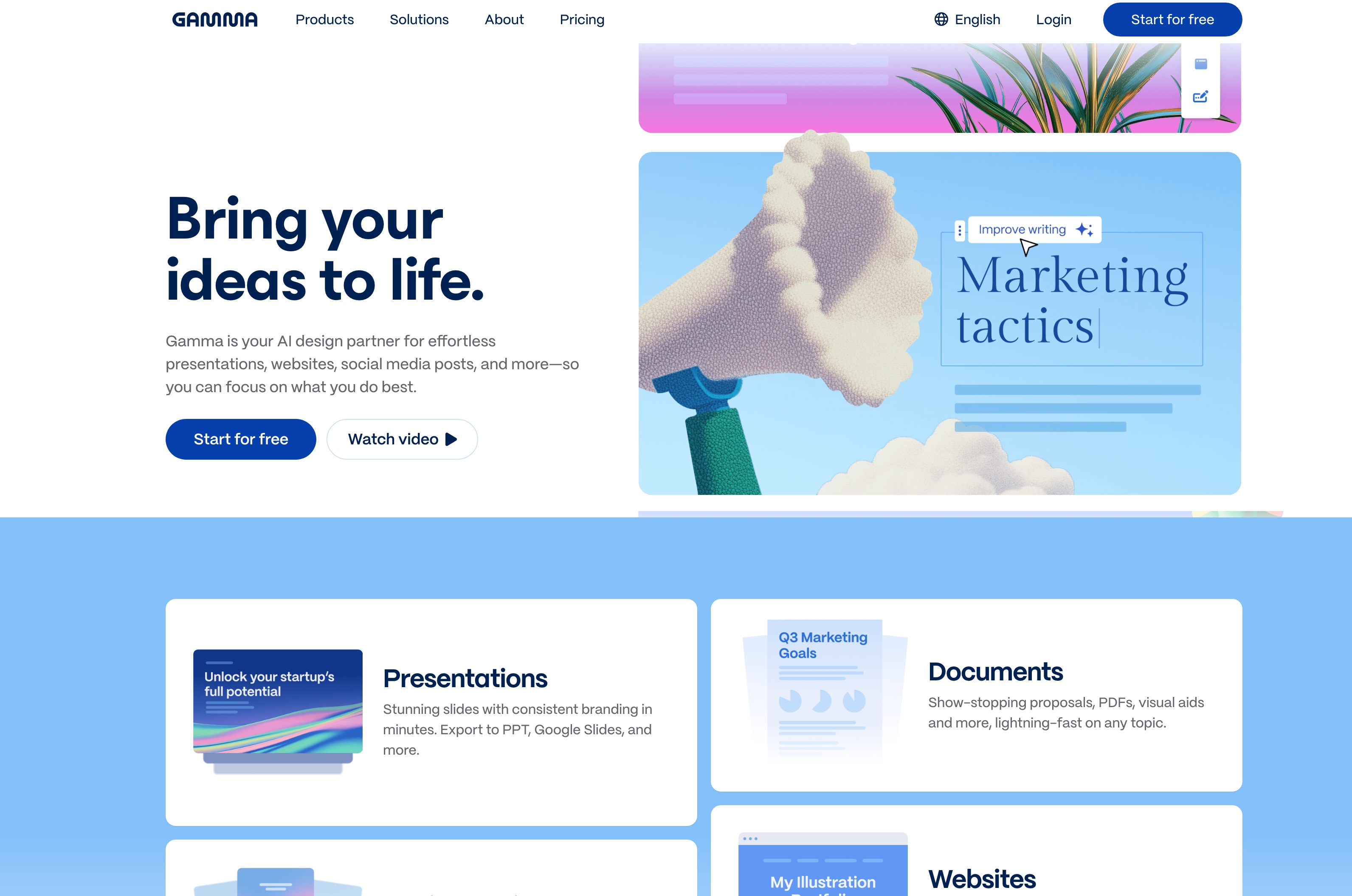
Once you are in:
- Click “Create New” and choose “Generate with AI”
- Pick the “Social” format
- Set the size to Square
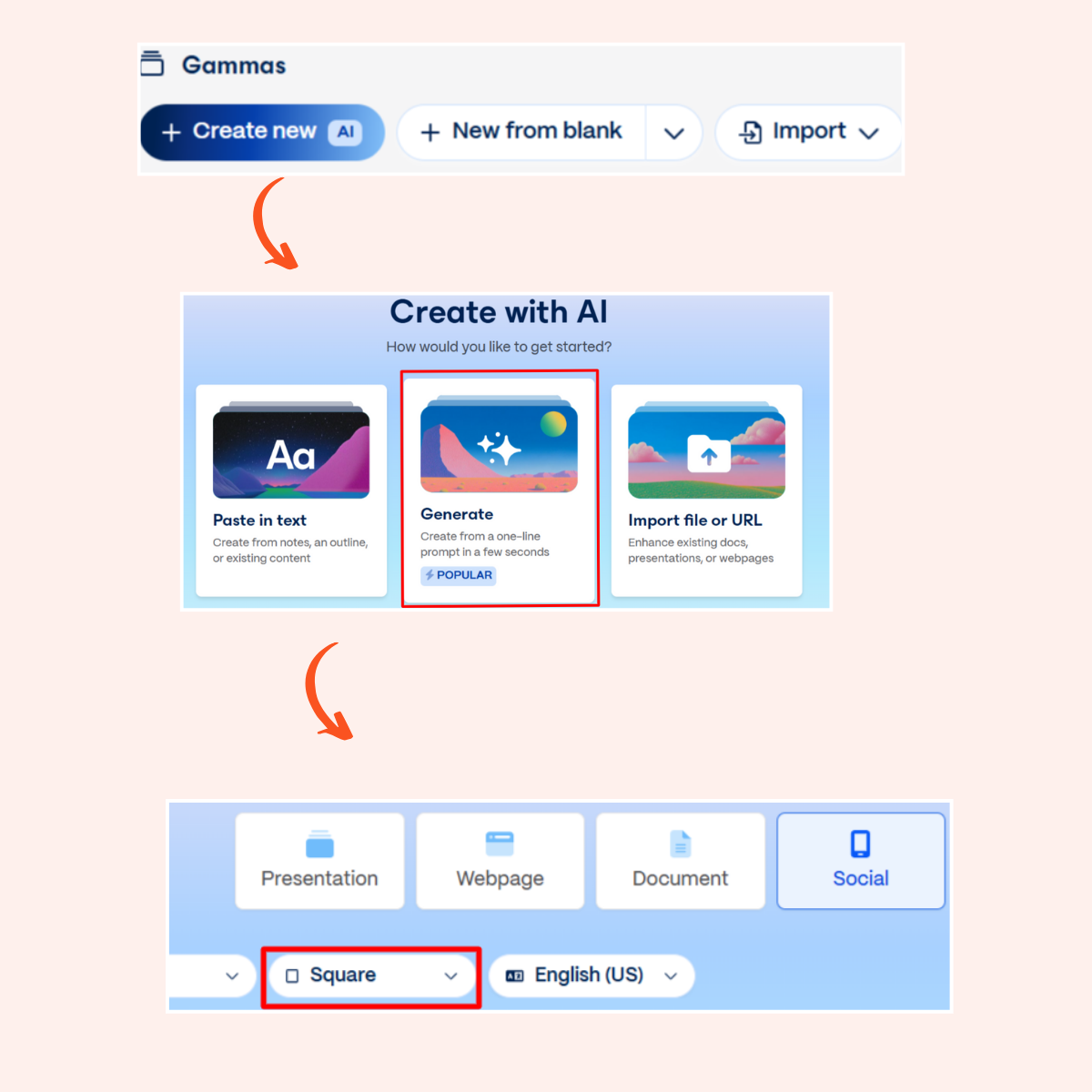
Square is worth insisting on. It occupies more vertical space in the feed than a landscape slide, which means more of the screen is yours as someone scrolls past.
Step 2: Crafting the Prompt
Vague prompts produce generic decks. The fix is to specify the structure, not just the topic.
A workable starting template:
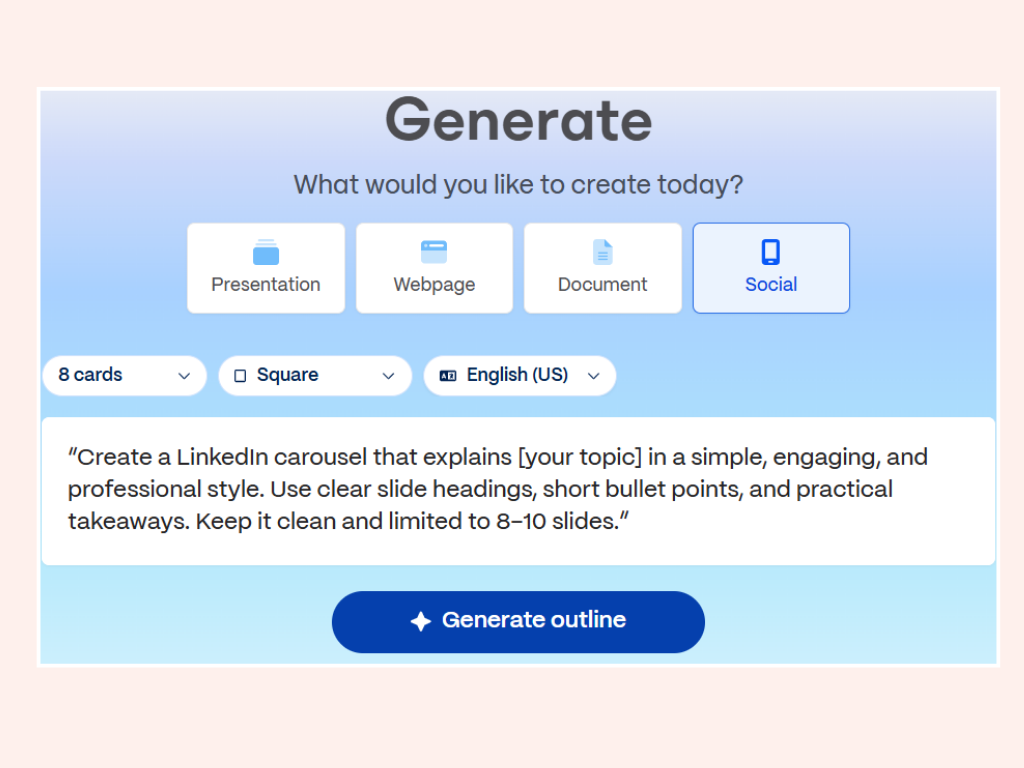
"Create a LinkedIn carousel that explains [your topic] in a simple, engaging, and professional style.
Use clear slide headings, short bullet points, and practical takeaways.
Keep it clean and limited to 8–10 slides."
A better one, because it dictates the shape:
"Create a LinkedIn carousel about [your topic] that targets [your audience].
Start with a hook slide that grabs attention, include 3-5 main concept slides with practical
examples, add one slide addressing common mistakes, and end with a clear call-to-action.
Use a professional yet approachable tone with bullet points limited to 3 per slide."
Filled in, that becomes something like: “Create a LinkedIn carousel about personal branding for entrepreneurs that targets startup founders. Start with a hook slide, include 4 main concept slides with practical examples, add one slide on common mistakes, and end with a clear call to action.”
Step 3: Structuring Your Carousel
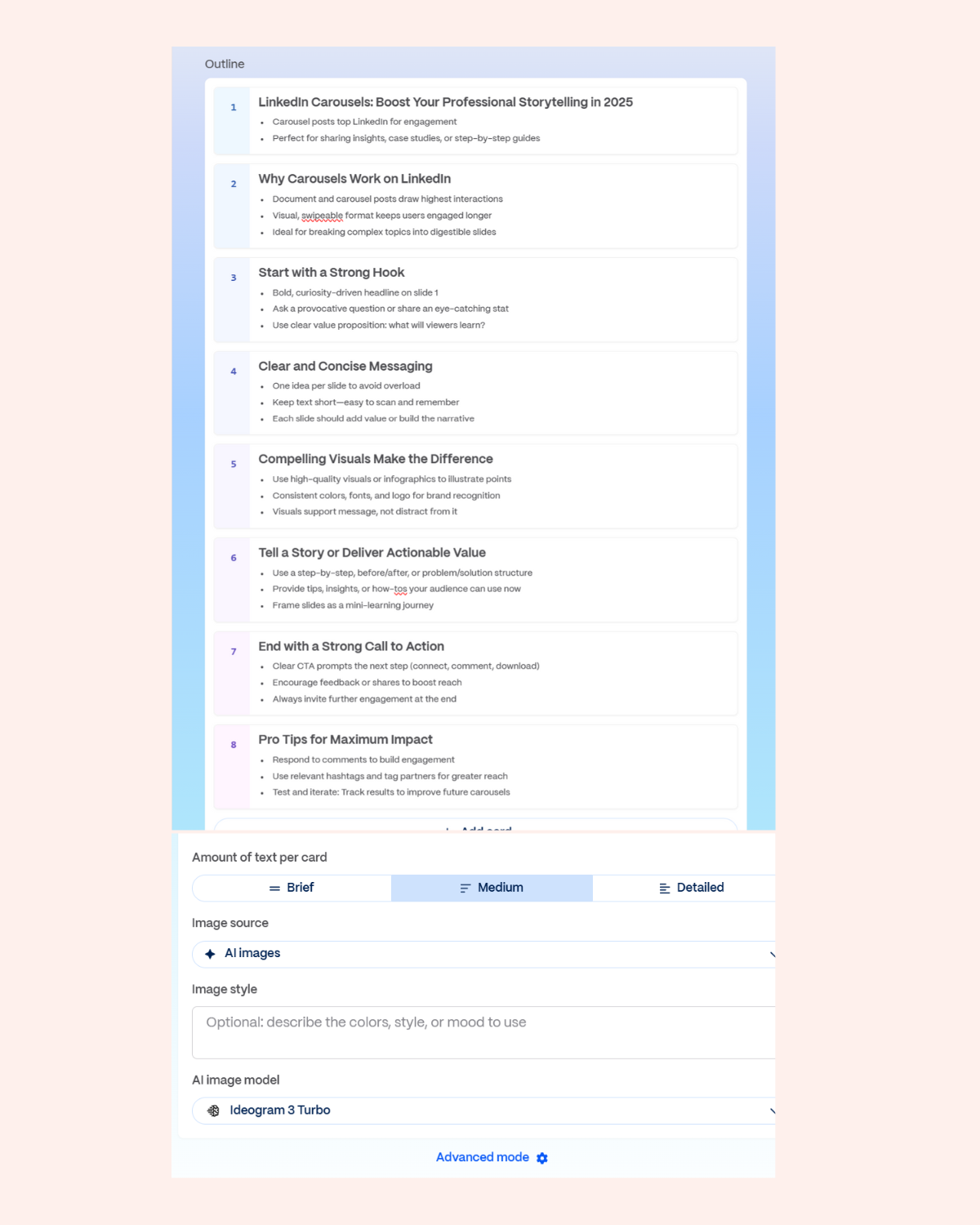
Gamma gives you an outline to edit before it designs anything. Spend your time here, since fixing structure later means redoing slides.
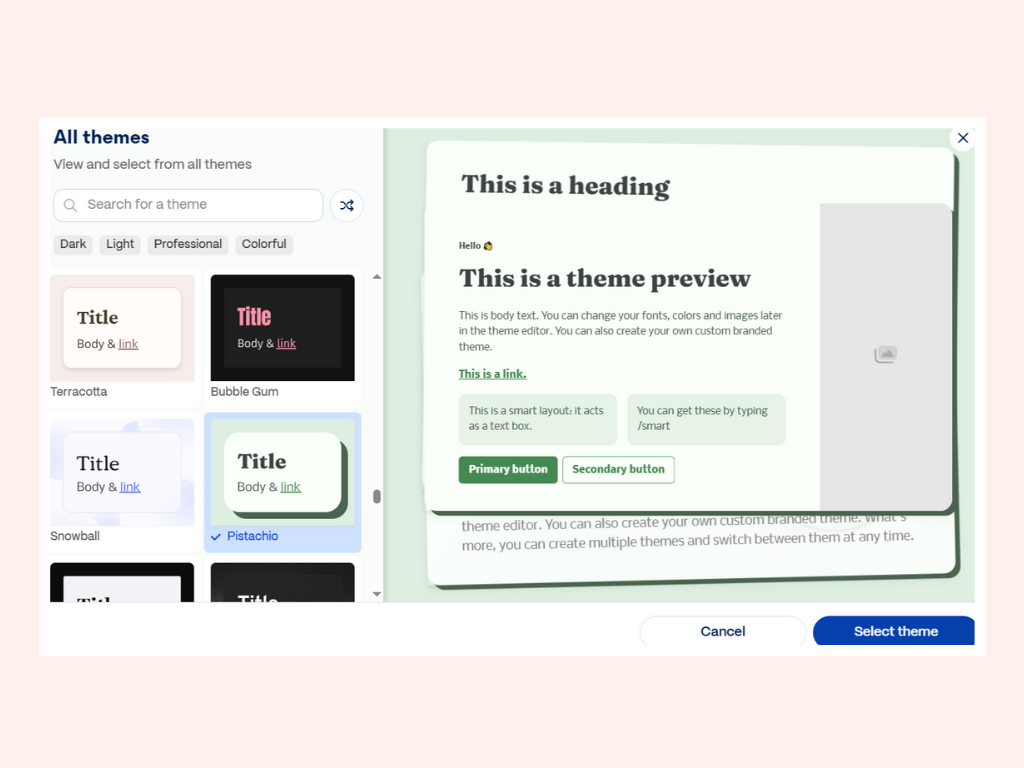
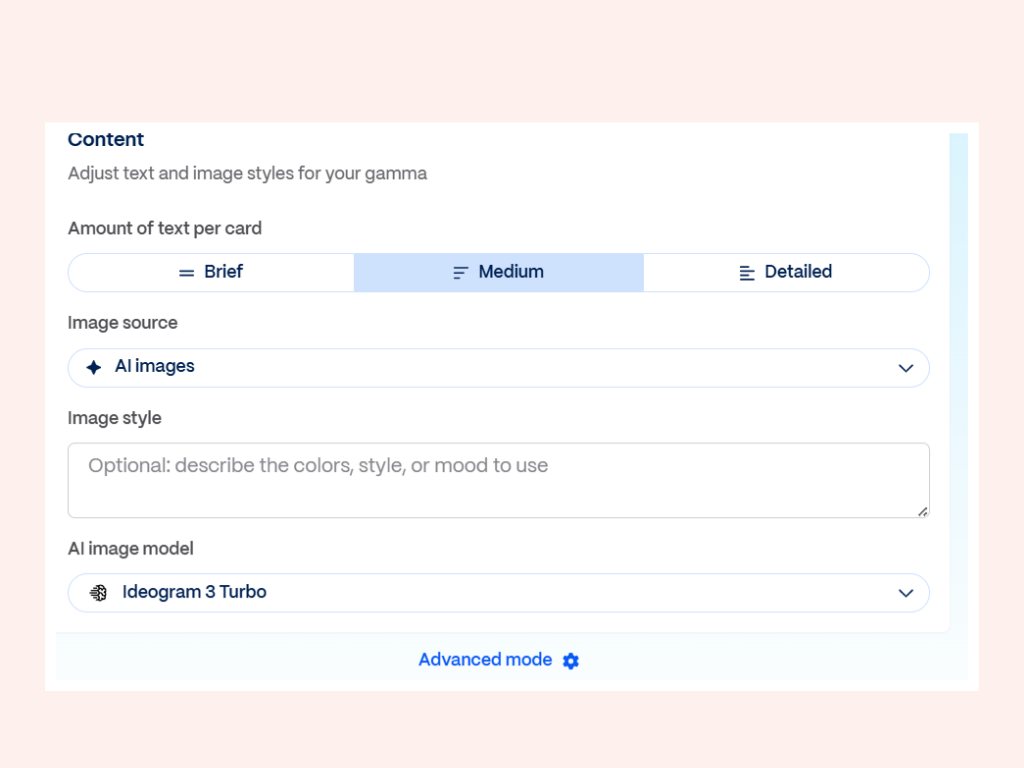
Theme. Pick something close to how the rest of your presence looks.
Text length. Always “Brief”. Carousel slides fail from too many words, never too few.
Image style. Minimalist, in your colors.
Brand consistency. Same logo, same palette, same type, every slide.
One thing worth knowing: an over-polished deck can read as an advert and get skipped. Slightly plainer usually performs better than slightly slicker.
Slide 1: The Hook
Slide one is the whole post. If it does not earn a swipe, the other nine slides do not exist.
- A statistic: “73% of marketers struggle with this and never notice”
- A question that names their problem: “Why does nobody finish your carousels?”
- A contradiction: “Everyone says post daily. Here is why we stopped.”
Slide 2: The Why
Say why this matters before you explain anything. Name the cost of getting it wrong, and the reader decides the next eight slides are worth their time.
Slides 3 to 7: The Content
One idea per slide. If you cannot say the slide’s point in a single sentence, it is two slides.
Slide 8: Common Mistakes
What people usually get wrong. This is the slide that makes you sound like someone who has done the thing rather than read about it.
Slides 9 and 10: The Close
One clear next step. A question worth answering, or a specific offer. Not “thanks for reading”.
Step 4: Export Your Design
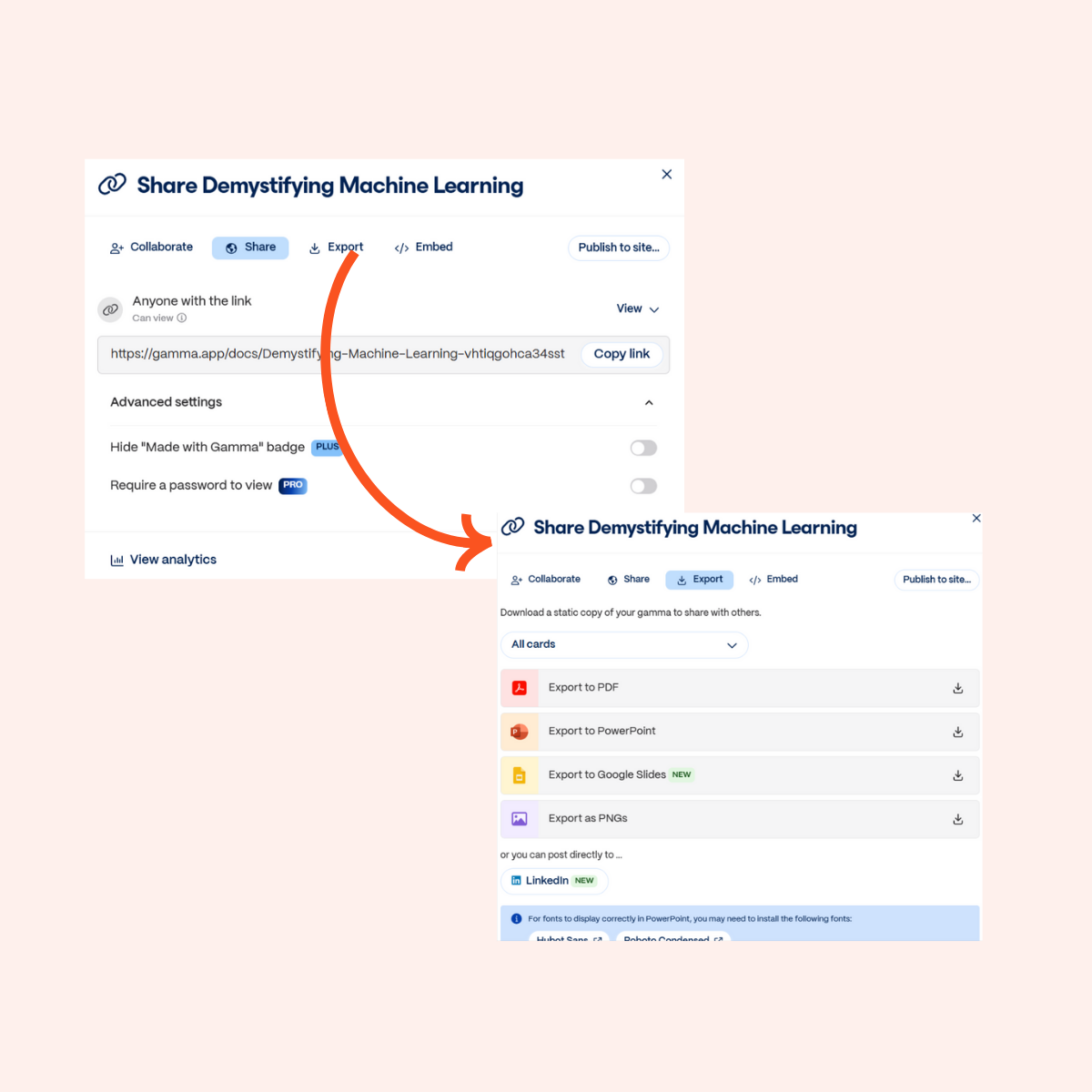
Export as PDF, via Export then PDF. LinkedIn turns each page into a swipeable slide.
Writing the Caption with Depost AI
A carousel without a caption is a deck nobody has a reason to open. The caption is where the swipe is earned.
In Depost AI:
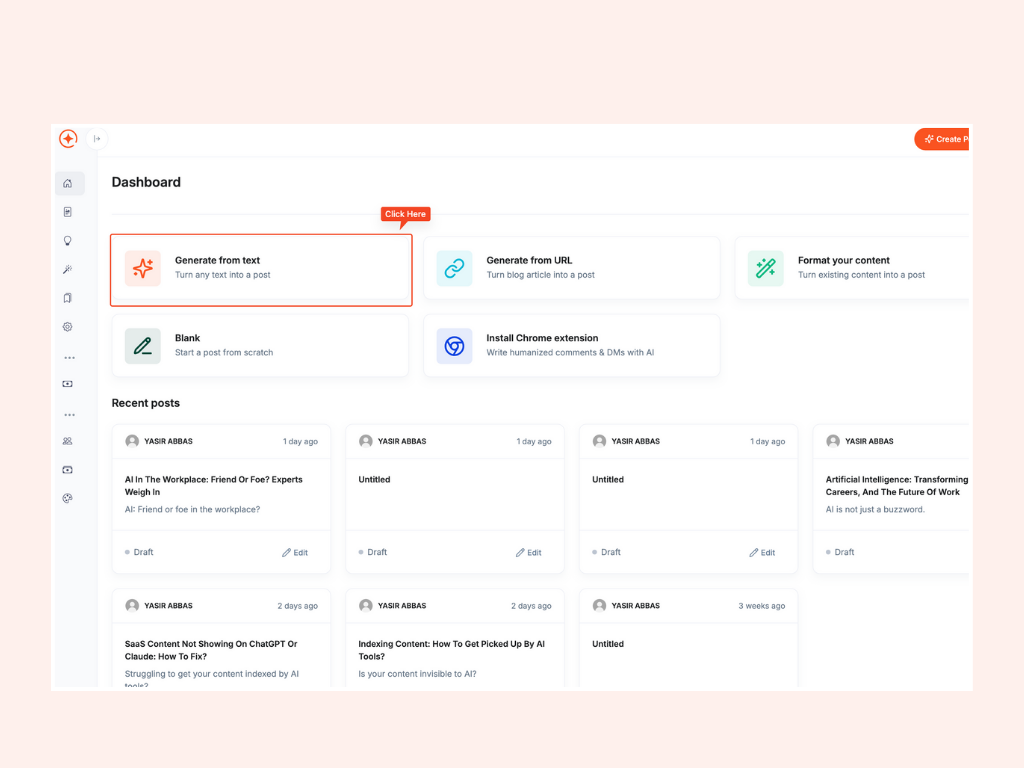
- Choose Generate post from text
- Paste in the summary of your carousel
- Pick the angle you want the caption to take
- Edit until it sounds like you
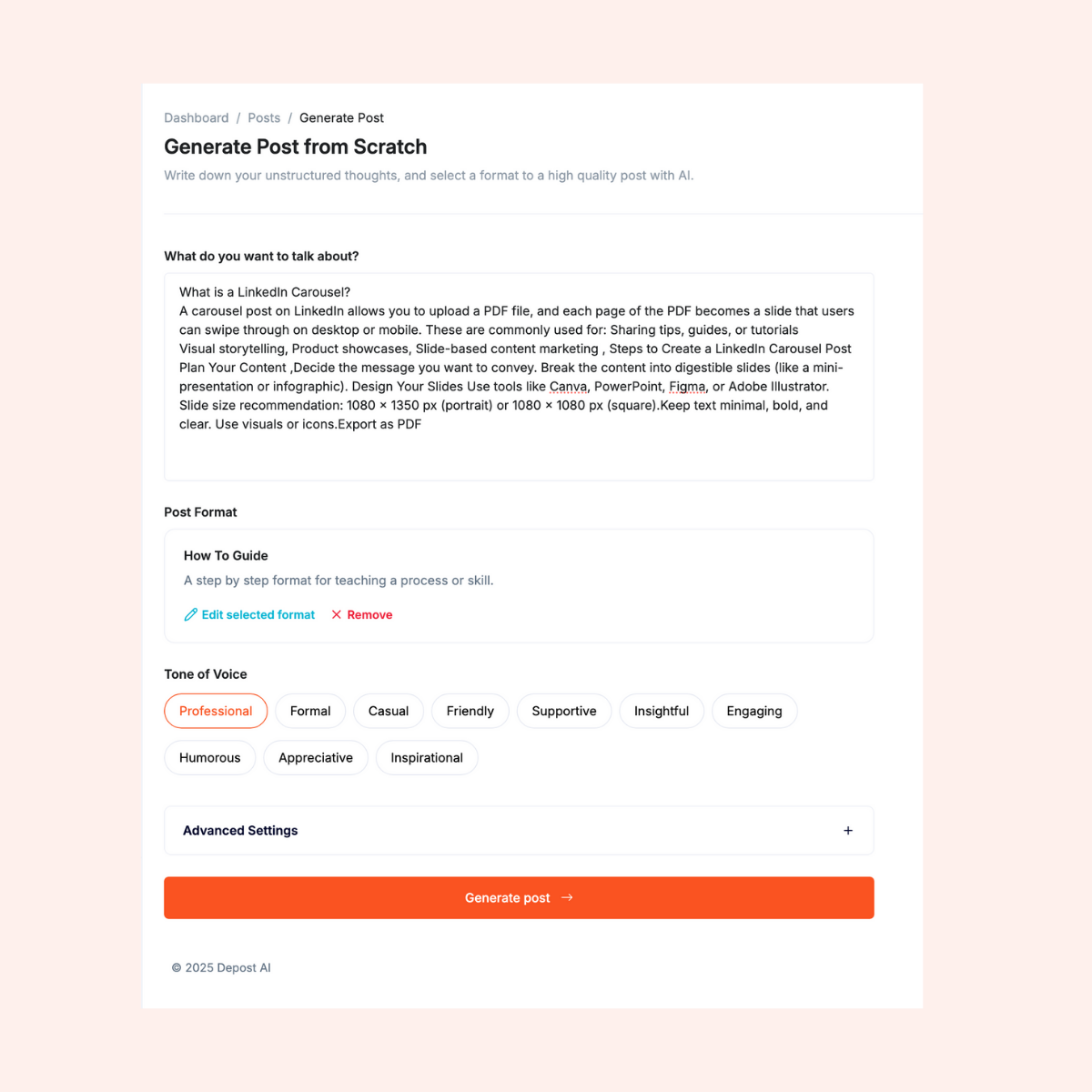
The editor handles the parts that are fiddly by hand: several opening lines to choose between, formatting that survives LinkedIn’s editor, and a closing line that asks for one thing rather than four.

Worth knowing if you would rather not use two tools: Depost AI’s Graphic Generator designs the carousel itself, in your brand’s colors and type, learned from what you have published. The post and its graphic arrive together, so there is no separate design step at all. The Gamma route above is still useful when you want fine control over a specific deck.
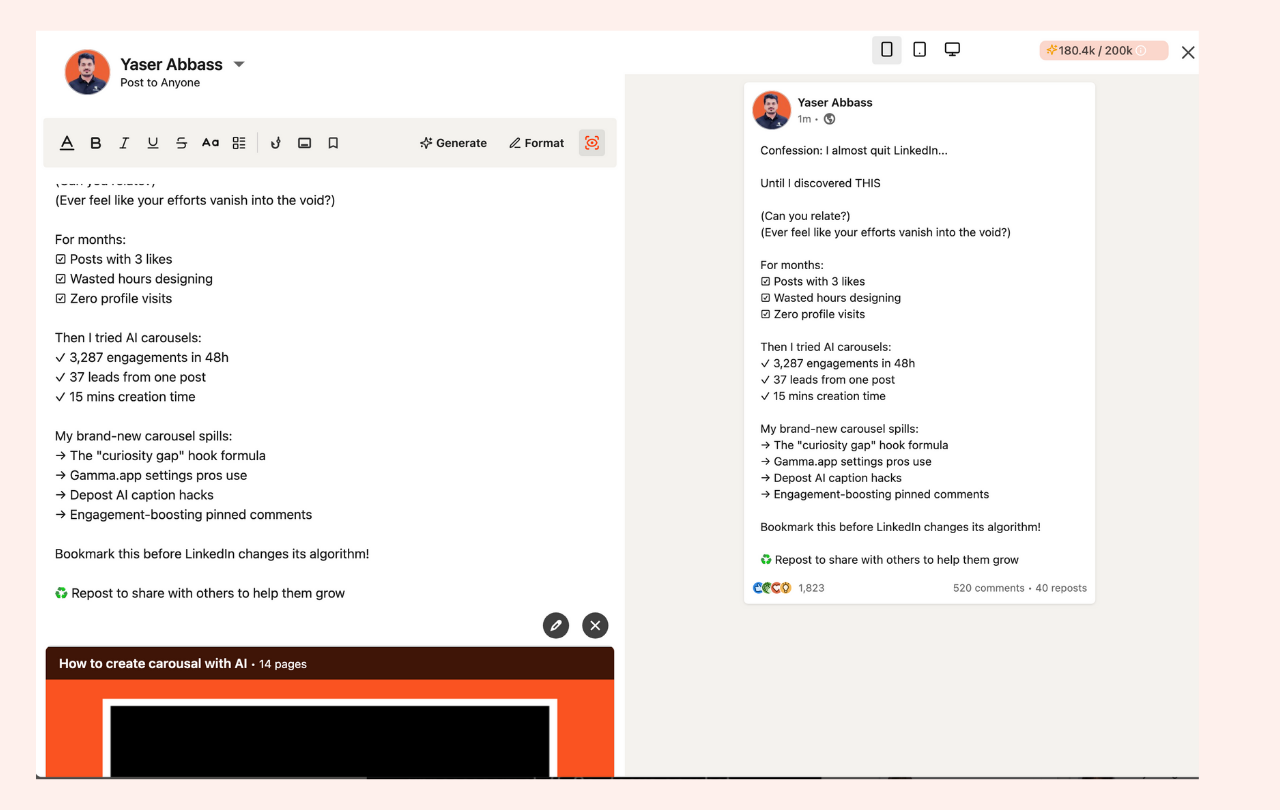
Step 5: Uploading to LinkedIn
- On LinkedIn, click “Create post”
- Attach the PDF, and each page becomes a slide
- Paste in your caption
- Preview before publishing
LinkedIn compresses uploads, so text that looked crisp in Gamma can come out soft. If slide text looks blurry in the preview, bump the font size and export again. This is the single most common reason a carousel looks amateur, and it has nothing to do with your design.
Pro Tips for Better Carousels
Earn the First Swipe
You have about three seconds. What tends to work:
- A position people can argue with: “Unpopular opinion: networking events are a waste of time”
- Curiosity with a specific payoff: “The change that tripled our post reach”
- A statistic: “Only 12% of professionals know this LinkedIn feature”
The Three-Point Rule
Three bullets per slide, maximum. Your reader is on a phone, one-handed, half paying attention.
Watch the Right Numbers
- Completion rate: how many people reach the last slide. The only metric that tells you whether the structure worked.
- Saves: the strongest signal that something was genuinely useful.
- Comment quality: three real questions beat forty “great post” replies.
Use the First Comment
Write the first comment yourself when the post goes live, and put something useful in it: the template you mentioned, a link, or a question that gives people an easy way in. It is free space directly under your post, and most people leave it empty.
Common Mistakes That Kill Carousel Performance
- Too much text. Paragraphs on a slide are unreadable on a phone.
- Inconsistent design. Changing fonts or colors mid-deck looks like you ran out of time.
- A weak ending. “Thanks for reading” wastes the one slide where people are most likely to act.
- Designing for desktop. Over 60% of LinkedIn usage happens on mobile. Check every slide at phone size before you export.
- No caption. The deck cannot do the persuading on its own.
Advanced Strategies
Solve most of the problem. Give away the useful 80 percent and keep the specific, situational part for a conversation. This works because the free part has to actually be good.
Run a series. A recurring, named format gives people a reason to follow rather than just to like.
Collaborate. Building a carousel with someone in an adjacent niche puts you in front of an audience that has never heard of you.
Repurpose what already worked. Your best-performing post, blog, or talk is already validated. Turning it into a deck is the lowest-risk carousel you will make.
Measuring Success
Likes are the least useful number available to you. Look instead at completion rate, saves, and whether any conversation started that led somewhere. A carousel with 40 likes and two serious inbound messages beat one with 900 likes and none.
What this changes
Carousels stopped being a design problem. Gamma builds the deck from a prompt, Depost AI writes the caption, and the bottleneck goes back to having something worth saying.
Creators running this process have grown their LinkedIn engagement by 300 to 500% within a few months. The part that does the work is not the tooling, though: it is doing it every week.
FAQ
How long does it take to create a LinkedIn carousel with AI tools?
About twenty minutes once you have done it once, covering the outline, the design, and the caption. The first attempt takes longer because you are learning what the prompt needs to say.
What’s the ideal number of slides for a LinkedIn carousel?
Eight to ten. Fewer and it feels thin, more and completion rates fall off. Each slide should carry one idea.
Do I need design experience to use Gamma?
No. You describe what you want and it generates the structure and layout. Your job is editing, not designing.
How can Depost AI help with carousel captions?
It drafts the caption from your carousel’s content, in a voice learned from your own published posts, gives you several openings to choose between, and formats it so it survives LinkedIn’s editor. It also designs carousels directly if you would rather skip the separate design tool.
What topics work best for LinkedIn carousels?
Anything with steps or a sequence: tutorials, breakdowns of something that went wrong, comparisons, and frameworks. Opinion pieces usually work better as text.
Should I post carousels on specific days or times?
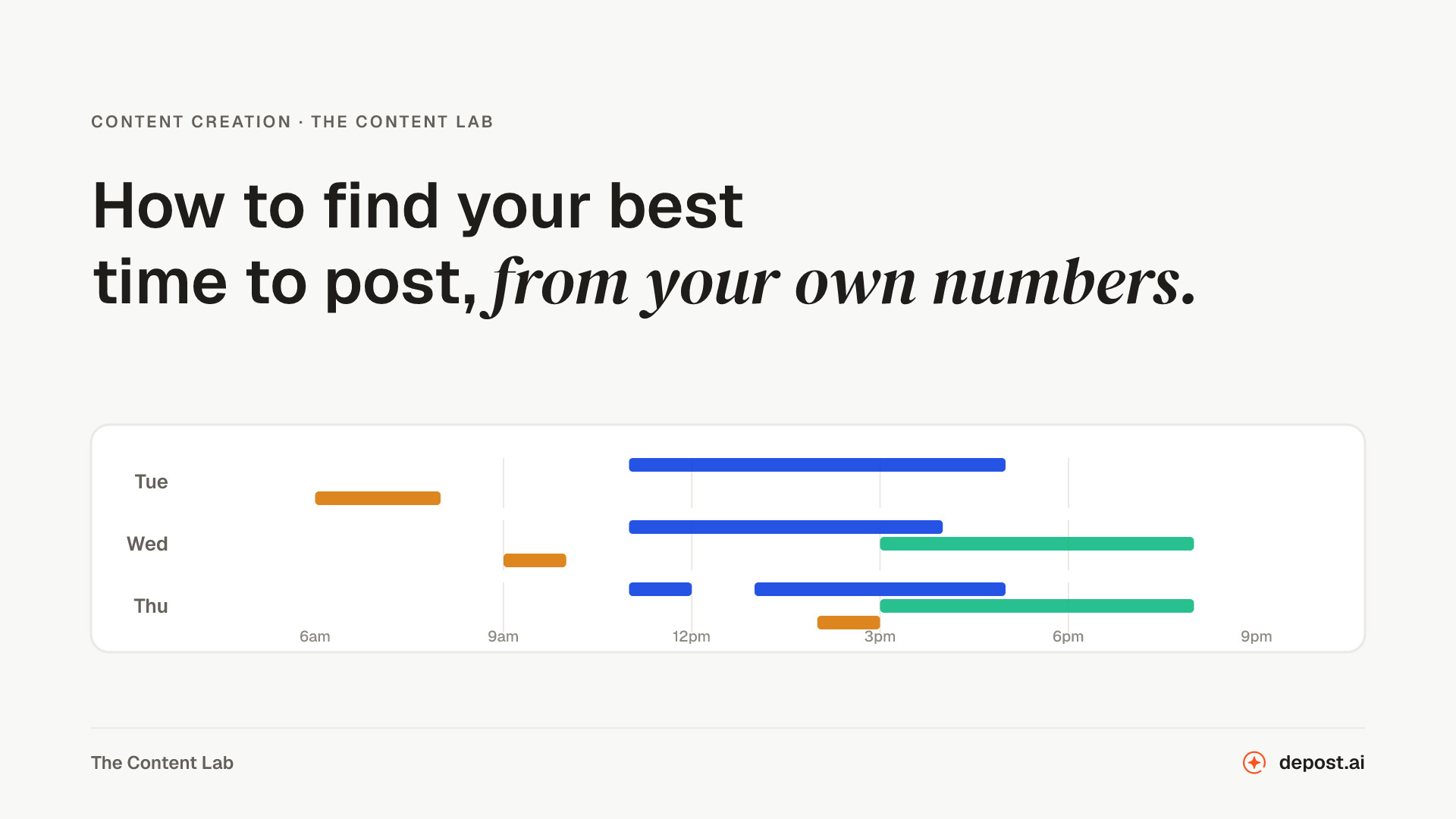
Weekday mornings are a reasonable default, roughly Tuesday to Thursday. Your own analytics will beat that guidance within a month or two of consistent posting.
How do I track the success of my LinkedIn carousels?
LinkedIn’s own analytics show impressions and engagement. The number worth watching is how many people reach the final slide, because that tells you whether the structure held.